
 Items
 Quests
 Spells
 Monsters
 Guilds
 Crafting
 Blessings
 Prey System
 Magic Roulette
 Mining
 Autoloot
 Commands
 Server Info
 Support
Autoloot automatically picks up the items you choose from the corpses of monsters you kill.
No more opening every corpse - the loot lands straight in your backpacks, sorted by category.
Autoloot is available for Premium Accounts only.
HOW TO OPEN THE AUTOLOOT WINDOW
Click the Autoloot icon (a backpack) in the icon bar, right under the Skills, Battle and VIP List buttons - exactly where it is shown on the screenshot below.
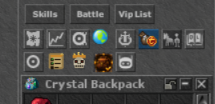
You can also open and close the window with the Ctrl + Alt + L hotkey.
The icon always shows the current state of your autoloot:
Autoloot is ON - monsters you kill are looted automatically.

Autoloot is OFF - nothing is picked up until you turn it back on.
TURNING AUTOLOOT ON AND OFF
Click the ON / OFF button in the top right corner of the Autoloot window.
The status line at the top shows the current state and how many items are on your list,
All your settings are saved on the server, so they stay after relogging and server restarts.
CATEGORIES
Your list is split into four categories, selectable from the buttons on the left:
Equipment
Potions
Gold / Coins
Other
The number in brackets shows how many items are in each category. Every category can have its own backpack (see ASSIGNING BACKPACKS below).
ADDING ITEMS TO THE LIST
Select a category first, then add items in one of two ways:
1. Drag an item from your backpack onto the grid.
2. Click an empty slot in the grid, type the item name and press Add (or Enter).
The list holds up to 40 items in total, across all categories.
Adding an item that is already on the list simply moves it to the selected category.
REMOVING ITEMS
Right-click an item in the grid to remove it from the list.
The Clear all button removes every item from all categories at once.
ASSIGNING BACKPACKS
Each category can send its loot to a separate backpack, e.g. potions to one bag, equipment to another. To assign one:
1. Put the backpack directly inside your main backpack.
2. Select the category and drag that backpack onto the tile at the bottom of the window.
Right-click the tile to unassign the backpack again.
Category without a backpack - the loot goes to your main backpack.
Tip: use a different type of backpack for each category (for example a brown one for Equipment and a blue one for Potions). Backpacks are recognized by their type, so two categories using the same backpack type can get mixed up.
WHEN A BACKPACK IS FULL
The checkbox at the bottom of the window decides what happens when the assigned backpack has no free space left:
Ticked (default)
Loot goes on to the next backpack of the same type - first the ones nested inside it (backpack in a backpack in a backpack...), then the other backpacks of that type in your main backpack. This lets you chain as many bags as you like.
Unticked
When the assigned backpack is full, the loot goes to your main backpack instead.
If your main backpack is full too, you get the message: Your backpacks are full! - and the rest of the loot stays in the corpse.
HOW LOOTING WORKS
When you kill a monster, its corpse is searched - including bags lying inside it.
Only items from your list are taken, everything else stays in the corpse.
A green sparkle appears on the corpse whenever something has been picked up.
Stackable items (coins, runes, ammunition) are picked up with their full amount.
NOT WORKING? CHECK THIS
Is your account Premium?
Is Autoloot switched ON (the backpack icon is not the grey OFF one)?
Is the item on your list, in the category you expect?
Does your main backpack, or the assigned backpack, have free space?
Did you get the killing blow? Autoloot works on monsters you kill yourself.
 TibiaFunOfficial Discord server